
Description
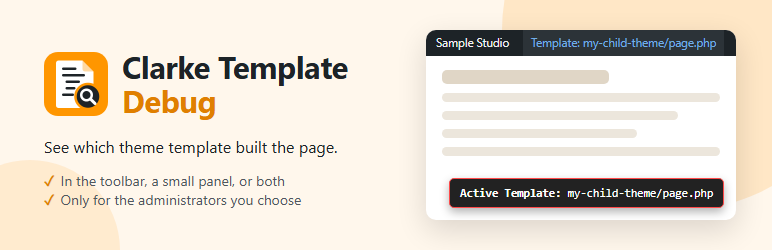
Clarke Template Debug shows which theme template file WordPress used for the current page, with its theme folder
(for example my-child-theme/page.php), so you can tell a child theme’s copy from the parent theme’s. Templates that
come from a plugin, such as WooCommerce, are shown from wp-content (for example plugins/woocommerce/templates/...).
With a block theme it shows the block template, such as twentytwentyfour/page, and says when that template has been
changed in the Site Editor.
- Show it in a small panel at the bottom of the page, in the toolbar at the top of the page, or both.
- Only administrators can see it, and you can limit it to chosen administrators by email address, so visitors and
other users never see it. - It’s never shown in the Customizer preview or on printed pages, and nothing extra loads for visitors.
- On right-to-left sites (such as Arabic or Hebrew) the panel sits in the bottom left corner.
Pro
Clarke Template Debug Pro, from clarkedesign.co.uk, adds:
- Every other theme file the page used – header, footer and template parts – in the panel and the toolbar.
- Click a file name to copy it.
- Put the panel in any corner of the page.
- A close button for the panel.
Screenshots


Installation
- In Plugins > Add New, search for “Clarke Template Debug”, then click Install Now and Activate.
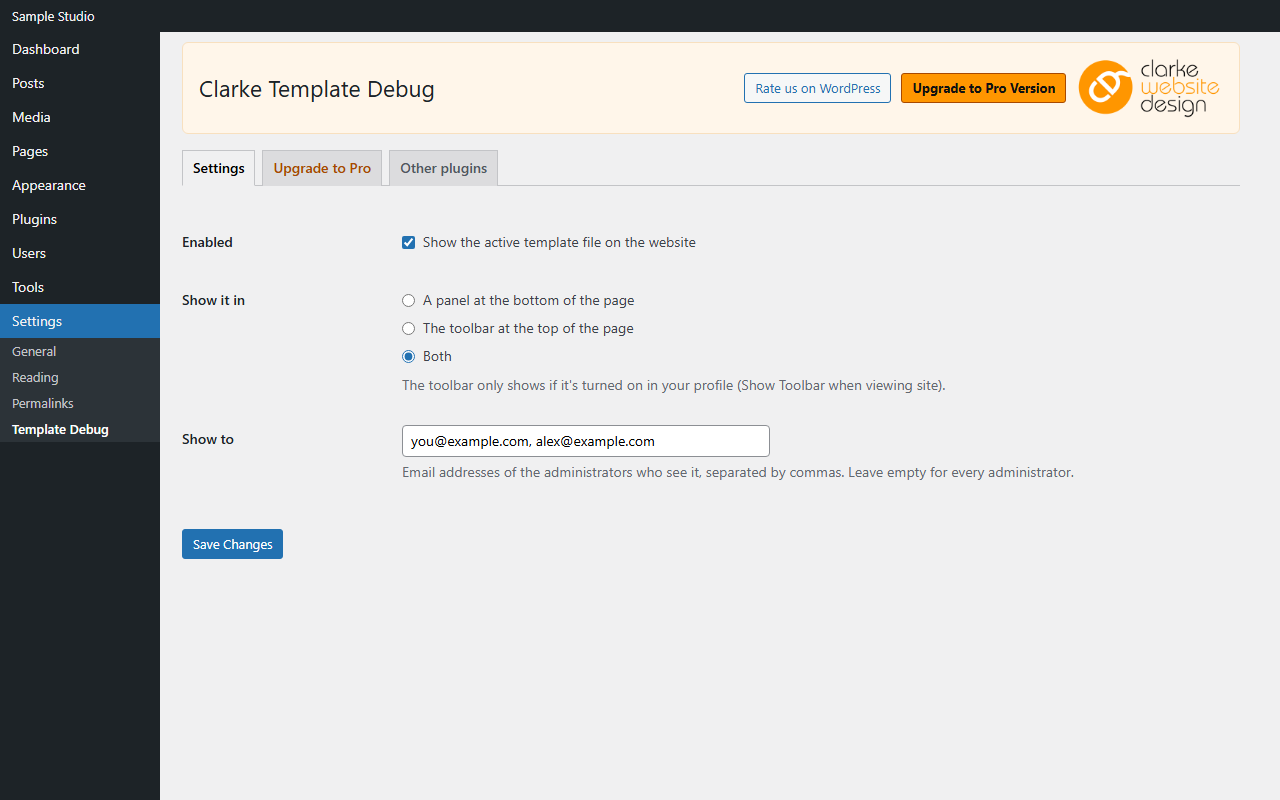
- Go to Settings > Template Debug to choose where it’s shown and who sees it.
When the plugin is activated, only the administrator who activated it sees the template. Add other administrators’ email addresses under “Show to”, or leave it empty for every administrator.
FAQ
-
Can visitors see the template name?
-
No. It’s only shown to logged-in administrators, and only to the ones listed under “Show to” if any are. For everyone
else the plugin adds nothing to the page – not even its stylesheet. -
Why can’t I see it in the toolbar?
-
The toolbar only shows on the website if “Show Toolbar when viewing site” is turned on in your profile. Choose “A panel
at the bottom of the page” (or “Both”) in the settings if you’d rather not use the toolbar. -
What does it show with a block theme?
-
Block themes don’t use PHP template files, so it shows the block template instead, such as
twentytwentyfour/page.
If the template has been edited in the Site Editor, it says “(changed in the Site Editor)”, because the saved copy is
used rather than the theme’s file. -
Should I leave it on all the time?
-
It’s safe to, as only the chosen administrators see it. You can also untick “Enabled” in the settings when you don’t
need it, without deactivating the plugin.
Reviews
There are no reviews for this plugin.
Contributors & Developers
“Clarke Template Debug” is open source software. The following people have contributed to this plugin.
Contributors
Translate “Clarke Template Debug” into your language.
Interested in development?
Browse the code, check out the SVN repository, or subscribe to the development log by RSS.
Changelog
0.2.1
- First release on WordPress.org.
- Tested with WordPress 7.1.
- The plugin’s code names now start with clarke_template_debug, as WordPress.org asks. Its hooks are clarke_template_debug_panel_classes, clarke_template_debug_panel_row, clarke_template_debug_panel_end and clarke_template_debug_toolbar.
0.2.0
- The settings page has tabs: Settings, Upgrade to Pro and Other plugins, which lists our other free plugins from WordPress.org.
- Shows the theme folder as well as the file name, e.g. my-child-theme/page.php.
- Says when a block template has been changed in the Site Editor.
- New setting: show the template in the toolbar, the panel or both.
- Not shown in the Customizer preview or on printed pages.
- The panel moves to the bottom left on right-to-left sites.
- Warns when a “Show to” address isn’t valid or doesn’t belong to an administrator.
- Removes its settings from every site when deleted from a multisite network.
- Ready for Clarke Template Debug Pro.
0.1.0
- First version.